To boot a computer from a USB drive, you need to write the image to it correctly. When using Rufus, the key point is specifying the partition scheme of your hard or solid-state drive. Let’s look at what to choose when creating a bootable USB drive with Rufus: MBR (Master Boot Record) or GPT (GUID Partition Table) to avoid errors. We’ll figure out the difference between them.
The MBR Partition Scheme
When a PC with the MBR drive structure boots, the startup procedure is handled by the BIOS. It tests and identifies the hardware, then detects the boot image. It reads the first sectors from it, where the bootloader with the partition table is located. After scanning the volumes, it finds the volume boot record (VBR) and reads it into RAM. The VBR initiates the loading of the OS.
The GPT Partition Scheme and Its Use
On PCs using the GPT format for storing information (GUID table), the BIOS is replaced by UEFI. The new firmware does not store the first stage of the bootloader (VBR); it is able to analyze the file system and load files. GPT is a partition table with a globally unique identifier, GUID. It occupies the first two sectors of the disk, while the zero sector still contains the master boot record for running UEFI in BIOS mode (Legacy Mode).
GPT stores the partition table on the drive, allowing UEFI to identify the hidden volume containing the bootloaders of the operating systems found on the PC. The bootloader calls the boot manager, which then loads the operating system.
Are the Partitions Compatible?
Only 64-bit operating systems boot from disks with a GUID table when using UEFI. 32-bit ones will not start.
For computers and laptops with EFI, it makes sense to convert Master Boot Record to GUID Partition Table.
Differences Between Disk Partition Schemes
| Differences | MBR | GPT |
| Number of volumes on the drive | 4, subpartitions can be created | Unlimited, Windows supports 128 |
| Maximum volume size | 2 TB | 9.4 ZB |
| Compatibility | With almost all OSes and hardware | Does not work on older PCs |
Other advantages of the new partition scheme:
- it boots the OS faster;
- it can recover damaged files thanks to CRC storage;
- it reserves a boot partition for recovering data if a volume gets damaged.
The startup process in UEFI and BIOS is similar, but with EFI there are fewer stages.
How to Find Out Whether a Disk Uses MBR or GPT?
To get information about the partition scheme:
- Press Win + R and type “diskmgmt.msc”.
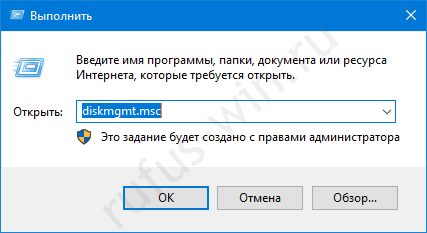
Entering the program name. - Click on the drive with Windows and select “Properties”.
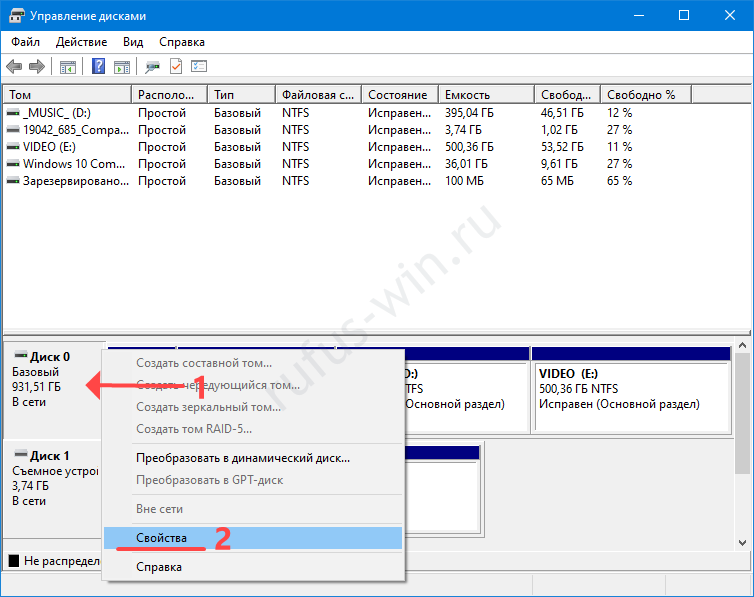
Disk Management – Properties. - On the “Volumes” tab, check the value in the “Partition style…” line.
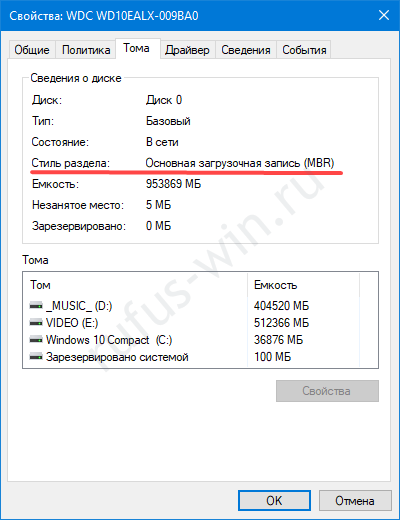
Partition style.
What to Choose When Creating a Bootable USB Drive?
For a PC with a 64-bit processor and UEFI, definitely choose GPT. MBR partitions can be converted to the new format with minimal risk of data loss. In other cases, use MBR:
- a 32-bit CPU;
- BIOS;
- if you need a 32-bit version of Windows;
- working with older hardware, and so on.
What to Do if Rufus Won’t Let You Choose GPT?
The Rufus utility does not offer the GUID Partition Table option and automatically sets the MBR scheme if the specified image is not bootable. Select a different ISO file.