
Portable software is the future. There’s no need to install tiny applications that don’t require drivers or third-party services especially when you only run them a couple of times a month. A great example is Rufus Portable, which you can download via torrent or as an archive from our website. This app helps you create a bootable drive, which is used to reinstall an operating system or start up a computer or laptop that doesn’t have an OS installed.
Program Features
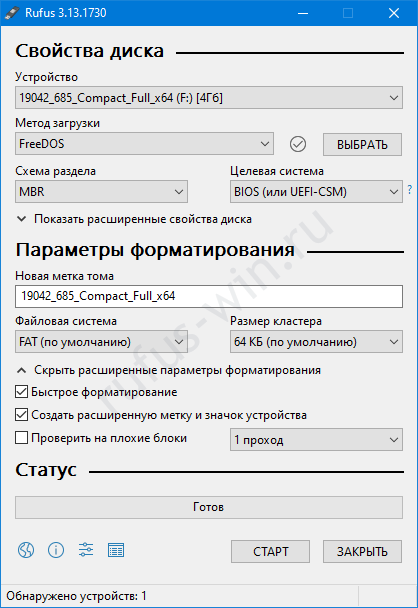
The app takes up just 1 MB, yet its list of features and capabilities could fill a whole page:
- Writes ISO images for DOS, Windows XP SP2 through 10, and Server 2003 through 2019.
- Supports thirty-plus Linux distributions.
- Adapts USB flash drive content for both BIOS and UEFI.
- Works with GPT and MBR partitions.
- Compatible with seven file systems: FAT, exFAT, FAT32, NTFS, UDF, ext2, ext3.
- Works with external hard drives.
- Checks memory for bad blocks.
- Performs full and quick formatting of flash drives and external HDDs.
- Creates extended volume labels.
- Lets you manage cluster size.
- Writes Windows To Go based on Windows 10 releases prior to May 2020.
- Includes thirty hidden functions for advanced users.
- Multilingual interface, including Russian.
- Distributed for free with open source code.
Pros and Cons
Advantages:
- No installation required—runs straight from the archive or any folder.
- Leaves no clutter behind—removes any keys left in the registry.
- Stores settings in the folder with the executable file.
- Easy to delete and move.
- Not tied to a specific computer—runs on any PC with a supported operating system.
No drawbacks found.
On Microsoft Windows XP SP3 and Vista, Rufus was only supported up through version 2.18. If you need a version for older OSes, try looking here.
Download
This portable utility runs from any folder or drive without requiring administrator rights. You can download Rufus Portable via torrent or as an archive below.
Rufus 2.18 Portable Version .torrent
Instructions: How to Run Rufus Portable
Extract the downloaded archive to a convenient folder—ideally a separate one, such as one named after the app:
- Right-click the archive and select “Extract All.”
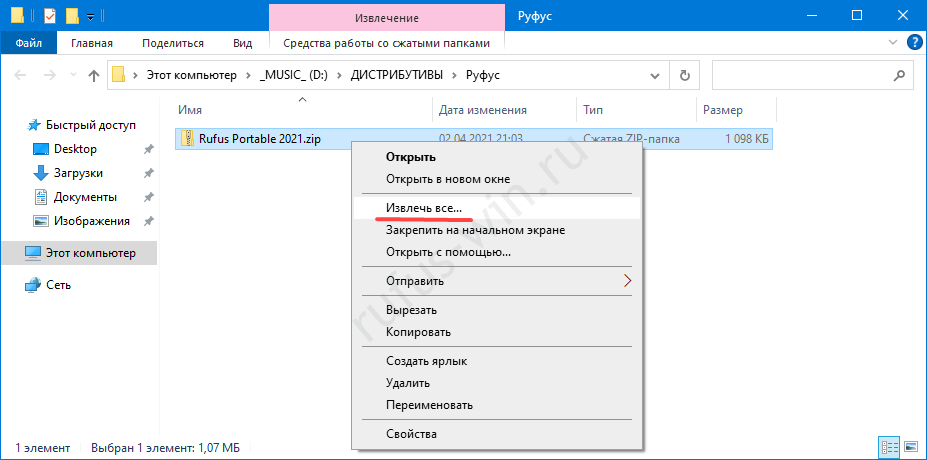
Extracting the contents - Enter the path to the folder where you want to store the files, then click “Extract.”
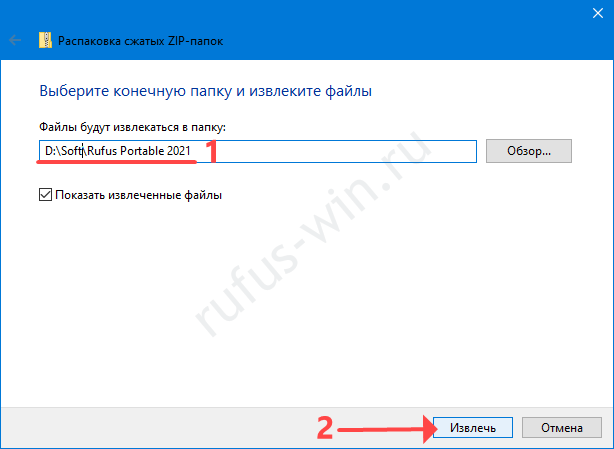
Choosing the folder location.
After the first launch, a configuration file called rufus.ini (containing your settings) will appear next to the executable. For more details on these settings, check out this article.