
A tool for creating a bootable Windows or Linux flash drive from an image. It offers the fastest creation speed and supports an enormous number of ISO images. To build such a drive, we recommend downloading the free Rufus program. Let’s look at how to use this utility to create a bootable USB drive for installing Windows, and we’ll also cover alternative apps for Linux and macOS.
About the Program
This is a freely distributed utility that was originally written as part of a tool for working with flash drives. Shortly after release, it became a standalone program for creating bootable media with installation files for operating systems, antivirus software, and other applications. It can format USB-connected digital drives and detect bad blocks on them.
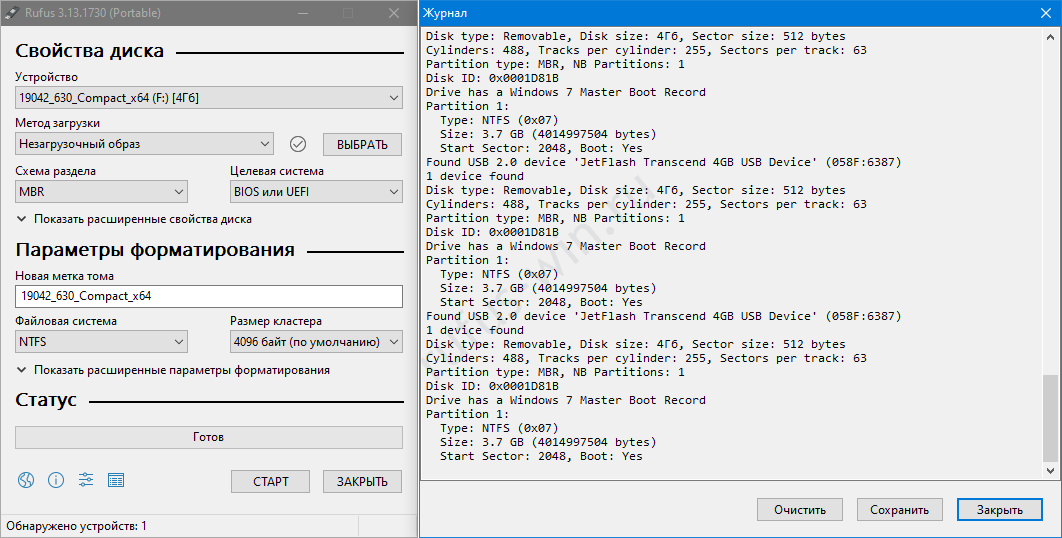
It supports LiveCD and WinPE. It’s distributed free of charge, and the source code is available on GitHub. The interface has been translated into 38 languages, including Russian.
Rufus Features
This app for creating bootable flash drives is valued for:
- Support for images from DOS to Windows 10
- Detection of bad sectors on the flash drive
- Compatibility with BIOS and UEFI
- Creating a flash drive image
- Hotkey management
- Working with memory cards and external hard drives
- Formatting flash drives and portable HDDs
- Changing the block size when creating a file system
- Cheat mode for working with images that have no boot sector
- Displaying write progress in the taskbar
- Support for dozens of Linux distributions
- Support for FAT, FAT32, exFAT, ReFS, NTFS, and UDF file systems
- Logging
- Compatibility with various Linux and Windows bootloaders
Pros and Cons
Advantages:
- Compact size
- No installation required
- Free to use
- Russian-language interface
- Fast performance
Disadvantages:
- Not available through Wine
Supported ISO Images
| Arch Linux | Hiren's Boot CD | Red Hat |
| Archbang | LiveXP | REFInd |
| BartPE/pebuilder | LiveCD | Slackware |
| CentOS | Knoppix | Super Grub2 Disk |
| Damn Small Linux | KolibriOS | Tails |
| Debian | Kubuntu | Trinity Rescue Kit |
| Fedora | Mint | Ubuntu |
| FreeDOS | NT Password Registry Editor | Ultimate Boot CD |
| FreeNAS | Parted Magic | Windows XP (SP2+), Vista, 7, 8, 8.1, 10 |
| Gentoo | Partition Wizard | Windows Server 2008, 2012, 2016, 2019 |
| GParted | Raspbian | WinPE |
| gNewSense | ReactOS | HiveOS |
Download Rufus for Free
You can download the latest version of Rufus below. The utility only works on Windows 7, 8, 10, and 11. Older systems like XP and Vista require older distributions, since newer versions won’t run on them. The portable version of Rufus doesn’t need installation. The executable works on both 32-bit and 64-bit systems.
Rufus 4.4 ARM 64 Version 64 BIT
Download from the Official Website
To download any version of the program from the official website, go to the official site.
Download the Program via Torrent
A torrent file lets you download Rufus using the BitTorrent protocol. Instead of downloading from servers or file-sharing sites, the data comes directly from other users’ computers that have the file stored and shared. Torrent files (with the .TORRENT extension) can be opened using specialized peer-to-peer clients such as uTorrent, BitTorrent, qBittorrent, and others.
Rufus 2.18 Portable Version .torrent
Hotkeys in Rufus
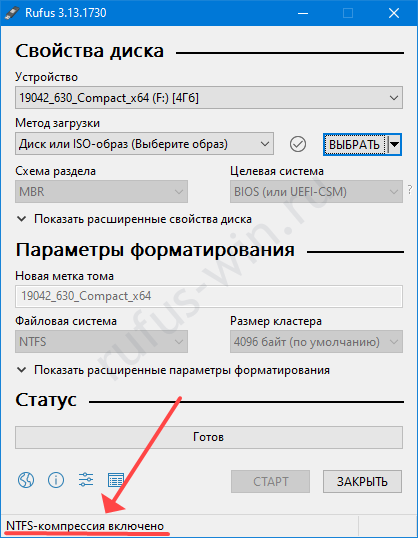
The features visible in the interface are just the tip of the iceberg. About three dozen additional options in Rufus are hidden from view. They can be toggled on and off using hotkeys: Alt plus a letter of the English alphabet, and even punctuation marks like periods and commas are used. After pressing the key combination, the name and status of the option will appear in the bottom-left corner.
- Alt-B – Detects a fake USB drive that reports a larger capacity than it actually has.
- Alt-D – Deletes the “rufus_files” subdirectory.
- Alt-C – Resets the USB port that the current flash drive is connected to.
- Alt-E – Enables dual BIOS-UEFI mode.
- Alt-F – Detects portable hard drives.
- Alt-G – Shows virtual VHD disks in the list.
- Alt-I – Toggles the image usage mode (enables and disables the so-called “flat disk” mode).
- Alt-J – Enables Joliet support for ISO9660 images.
- Alt-K – Turns Rock Ridge on or off.
- Alt-M – Ignores the Boot Marker.
- Alt-N – Enables compression when writing NTFS.
- Alt-O – Creates a disk image on the first detected drive.
- Alt-Q – Indexes files.
- Alt-P – Opens access to the GPT ESP.
- Alt-R – Clears Rufus keys from the registry.
- Alt-S – Limits the size.
- Alt-T – Preserves the timestamp.
- Alt-U – Automatically detects units of measurement.
- Alt-V – Uses VDS for formatting and partitioning the flash drive.
- Alt-W – Detects a VMWare disk.
- Alt-Y – Forces an update check.
- Alt-X – Disables NoDriveTypeAutorun when exiting the application.
- Alt-Z – Rufus will format the flash drive.
- Alt-. – Enables USB debugging.
- Alt-, – Applies special USB lockdown.
Questions and Answers
Describe your issues in the comments, and we’ll help you find a solution.