Windows supports the FAT32 and NTFS file systems. Choosing how to organize data on a drive is one thing—here NTFS is preferable, as it handles files larger than 4 GB. Creating a bootable USB drive is another matter. In this case, the usual rule doesn’t apply. Let’s look at how these file systems differ and which one to choose when creating a bootable USB drive in Rufus.
What Is a File System
A file system defines the methodology and the way information is organized and stored on a digital medium. It dictates the format, the method of writing and reading files, their names, and their attribute sets. The file system determines the maximum file path length, the size and number of entries in a directory, and the access permissions and attributes. When writing a bootable Windows USB drive, the Rufus utility offers a choice between FAT32 and NTFS.
A file system cannot exist without a digital medium and an API (protocol) that describes the technology for accessing information.
FAT32 Features
Pros and Cons
Advantages:
- Compatible with a wide range of devices.
- Optimal for hard drives with a spindle speed of 5400 rpm.
- Compact system areas.
- UEFI supports FAT32 with GPT partitions.
Disadvantages:
- Read speed of fragmented files.
- Maximum file size is 4 GB, and maximum volume size is 127.5 GB.
- You cannot create a volume larger than 32 GB using the built-in tools of Windows 7 and older operating systems.
- Low performance on partitions of 32 GB and larger.
- Does not store metadata.
- Maximum disk size is 8 TB.
Developed by Microsoft, this is a digital information organization technology supported by Android, DOS, and Windows.
NTFS Features
This is an advanced file system compared to its predecessors, with metadata support. Information about documents is stored in the MFT (Master File Table) to improve performance and the efficient use of disk space. It allows you to differentiate access to information for users (accounts) and set disk quotas for them. It uses USN journaling.
Pros and Cons
Advantages:
- Access control for accounts.
- Support for streaming data.
- Support for EFS encryption and hard or symbolic links.
- Writing (with a third-party driver installed) and reading in MS-DOS.
- Maximum disk size is up to 256 TB, and maximum file size is 16 TB.
Disadvantages:
- Low read and write speed.
- Compatible with a limited number of operating systems and devices.
What to Choose in Rufus: FAT32 or NTFS?
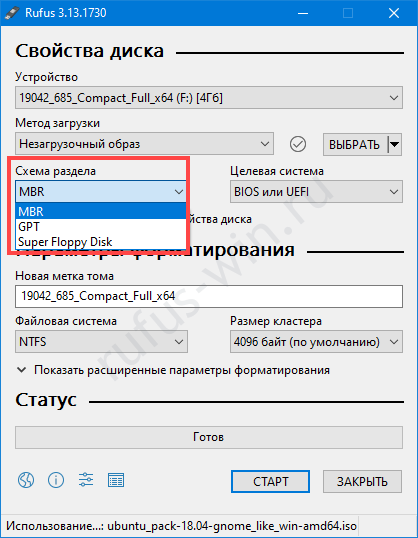
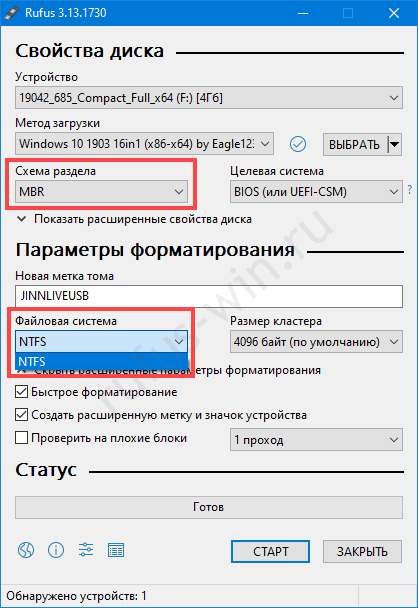
The program’s developers know what they’re doing. Computers with UEFI and GPT partitions boot only from USB drives with FAT32, although the application allows you to change it. For the MBR partition scheme and BIOS, NTFS is suitable, and the Rufus utility does not let you format a USB drive as FAT32.
When working with Linux images or non-bootable ISOs, other options are available: ext2, ext3, exFAT, UDF.
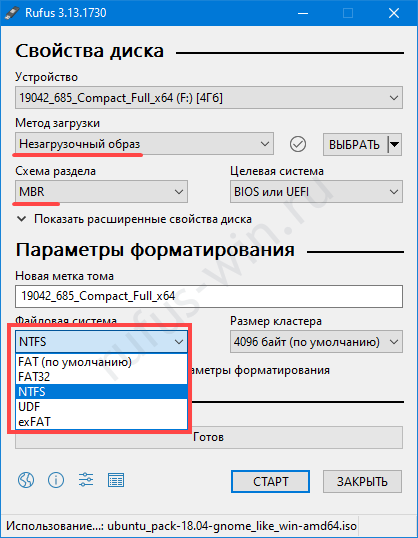
What to Do If FAT32 Cannot Be Selected in Rufus
If FAT32 or NTFS cannot be selected in Rufus, then leave the recommended file system in place. If you change it, the USB drive most likely won’t boot on the PC. To solve the problem, specify a different partition scheme.