When you no longer need a bootable flash drive, you can restore its data storage functions. In this article, you’ll learn how to recover a flash drive after creating a Rufus image, as well as the risks of damaging your storage device.
Restoring a flash drive (SD) with a simple format
To create a new file system:
- Right-click the device in the “This PC” folder.
- Select “Format”.
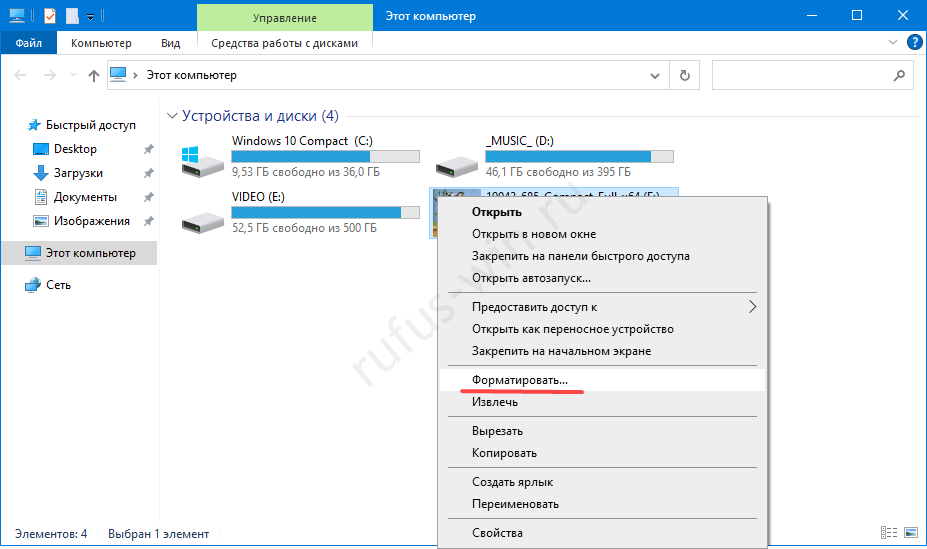
Starting the process via the context menu. - Uncheck the “Quick…” option.
- For “File system”, NTFS is recommended; the other settings don’t need to be changed.
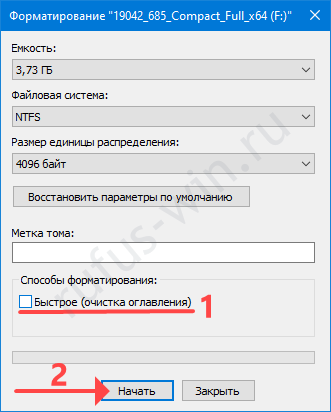
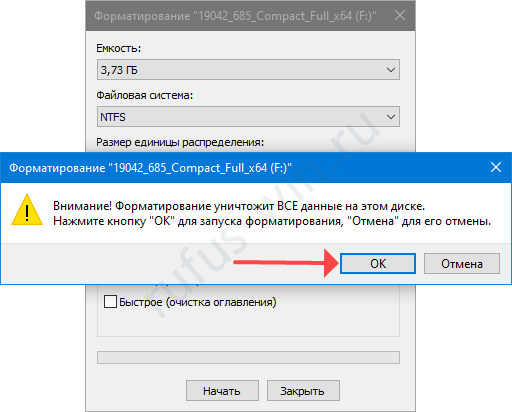
- Click “Start” and confirm erasing the files from the device.
Repairing a flash drive after Rufus
A USB flash drive with a damaged logical structure sometimes doesn’t appear in Windows Explorer or file managers.
- Open the Disk Management tool by right-clicking the Start button.
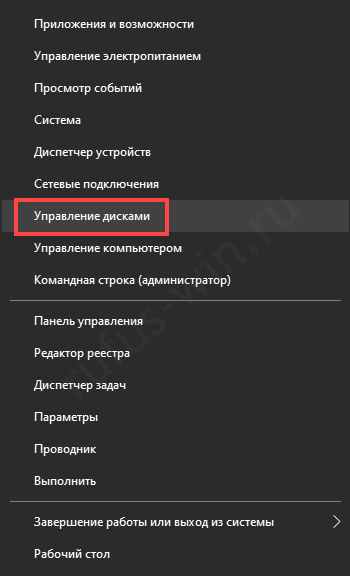
Disk Management in Windows. - In the context menu of the removable device, run the format command.
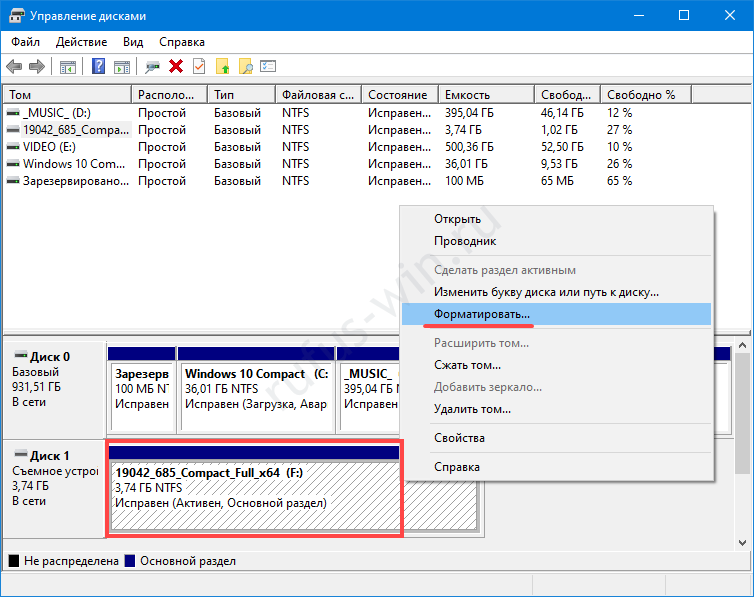
Formatting the problematic drive. - Confirm that you agree to lose the contents.
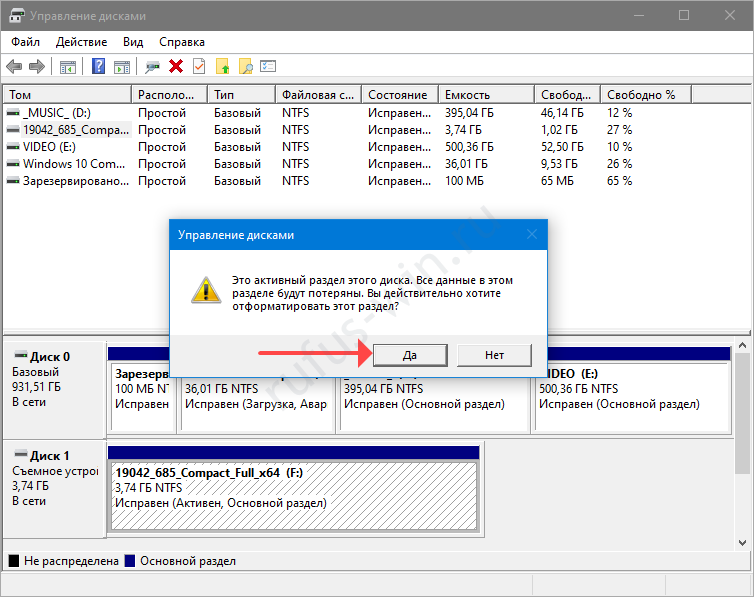
The final step.
Restoring a flash drive with Rufus
The Rufus utility can reset flash drives – erase files from them, delete partitions, leaving the drive without any layout. In other words, it returns flash drives to their “out-of-the-box” state:
- Insert the drive into a USB port and launch Rufus.
- Press Alt + Z.
- Confirm the device reset.
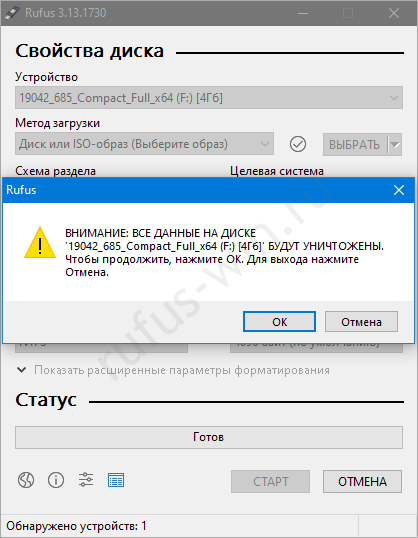
Resetting a flash drive with Rufus. - Format it using “Disk Management via Rufus”: select “Non-bootable image” and click “Start”.
How to restore a flash drive with the built-in diskpart utility
The built-in diskpart.exe utility is a tool for managing disks in Windows.
Be careful and follow the steps precisely, otherwise it’s easy to lose files on your HDD or SSD.
- Launch Command Prompt as Administrator via Win + X.
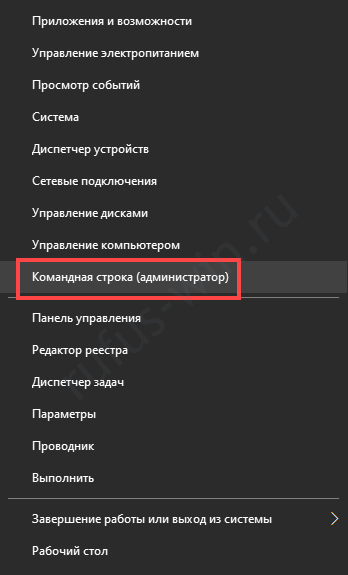
Launching Command Prompt. - Run the following commands in sequence:
- diskpart – launches the utility;
- list disk – gets the list of storage devices.
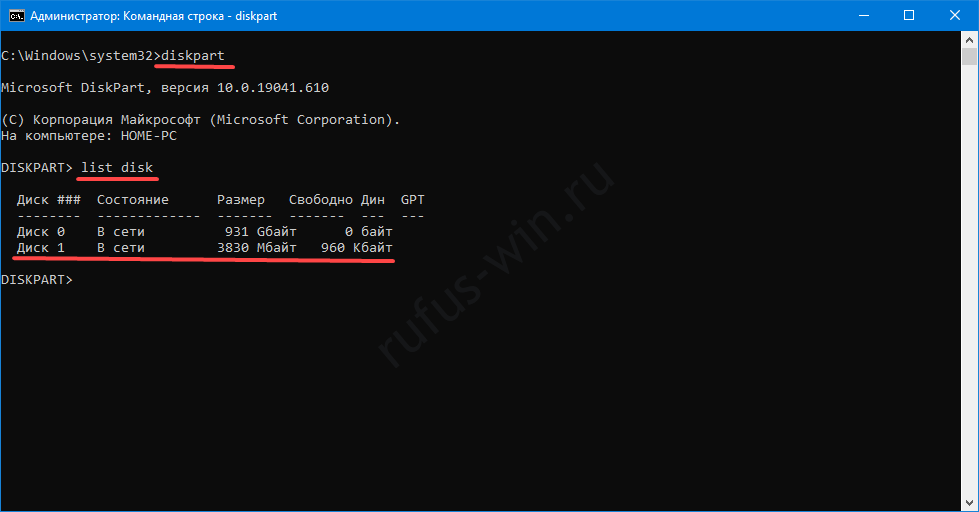
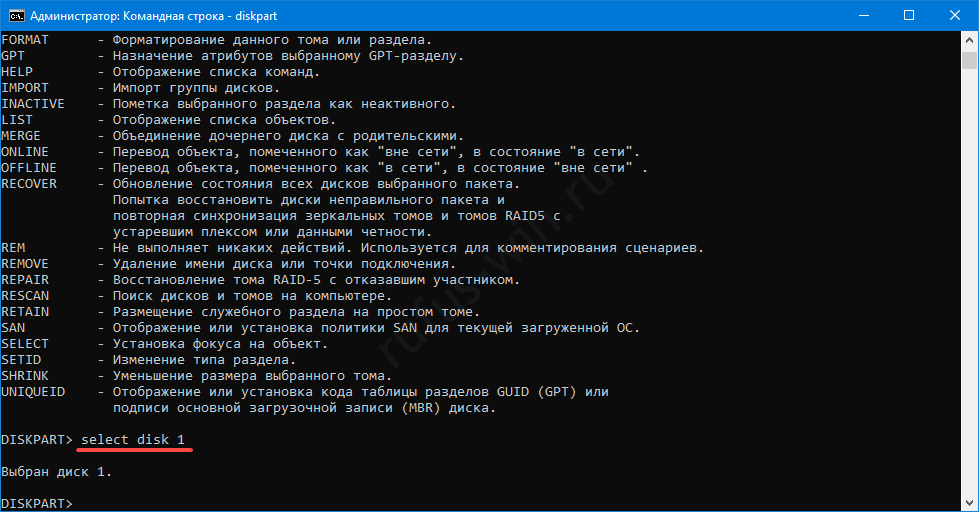
- Run “select disk 1”, where 1 is the number of your flash drive from the previous command.
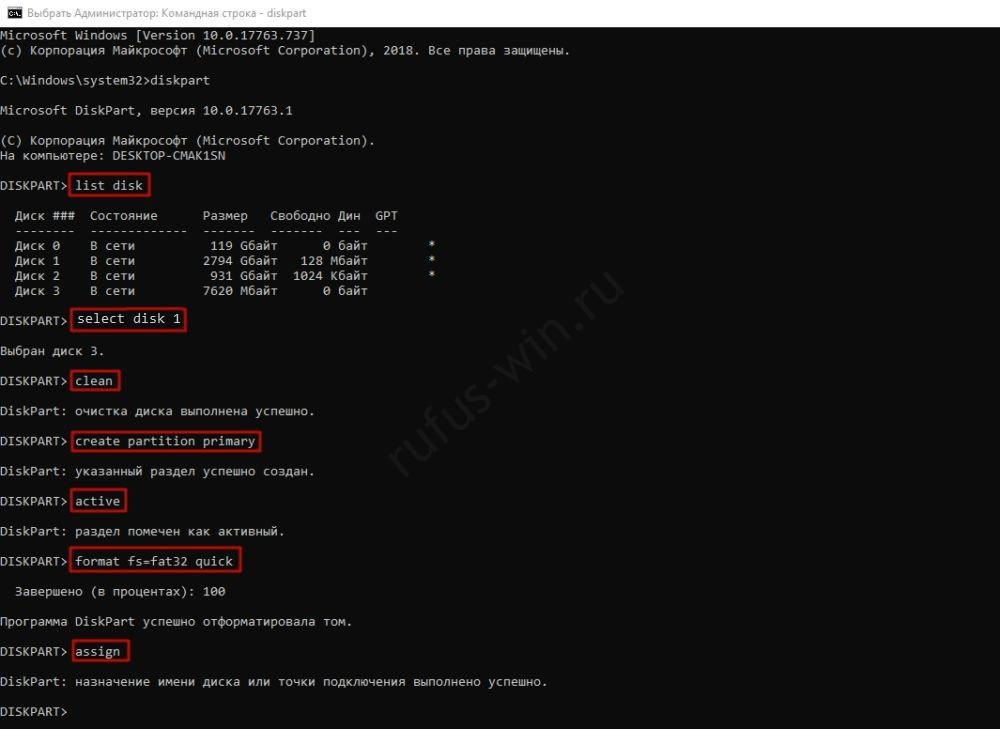
- Run the following in sequence:
- clean – wipes the device;
- create partition primary – creates a new partition;
- active – makes the flash drive active;
- format fs=fat32 quick – quick format to FAT32 (replace with NTFS); without the “quick” attribute, a full format will run;
- assign – assigns a free drive letter.
Other ways to convert a bootable flash drive back to a regular one
For more complex cases, use these programs:
- HDD LLF Low Level Format Tool;
- AOMEI Partition Assistant Standard;
- HP USB Disk Storage Format Tool;
- Paragon Partition Manager;
- Acronis Disk Director;
- Macrorit Partition.
Some flash drive manufacturers release their own branded applications for formatting and reviving storage devices. Try downloading such an application from the manufacturer’s official website.