Computer owners can’t do without a bootable USB drive. Rufus is a free utility for creating bootable media from various OS images. The application works almost flawlessly thanks to its tiny size and algorithms refined over the years. However, issues can still arise while using the program. Let’s take a look at why Rufus fails to launch, what errors it produces, and how to fix them using our instructions.
Why Errors Occur While Using the Utility
Sources of problems: the condition of the flash drive, the image, and the operating system. Sometimes they depend on how careful the user is.
Errors when writing images and formatting a flash drive in Rufus are mostly caused by:
- The drive being used by other applications (a file located on the device is open);
- Damaged memory cells or other issues with the device;
- A non-bootable or corrupted image;
- The use of cheap Chinese USB hubs and extension cables;
- Antivirus software that blocks the program from working.
Flash Drive Malfunctions
Rufus is unlikely to write the image contents to a damaged flash drive. Even if it does copy the files, they may later be unreadable. To fix errors with non-working sectors:
- Open the device properties via File Explorer (Win + E).
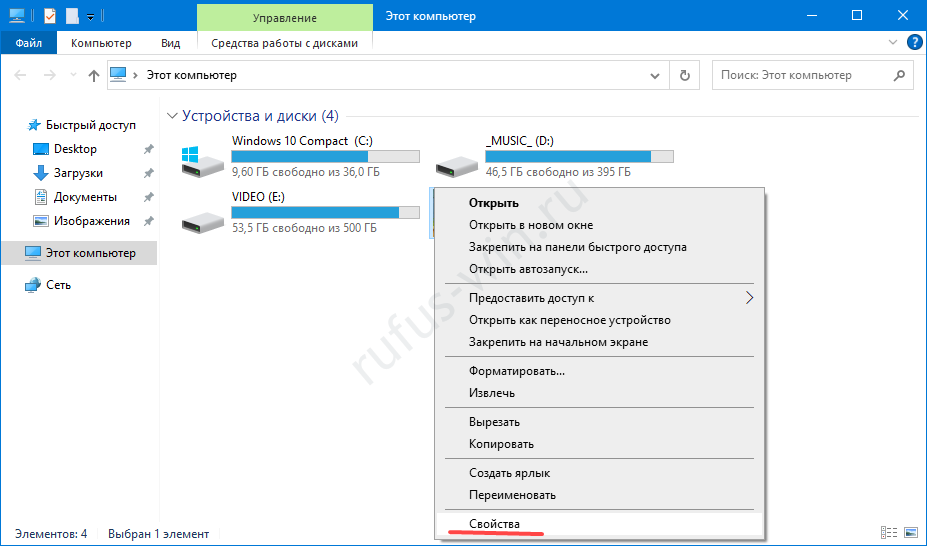
Flash drive properties. - On the “Tools” tab, click “Check”.
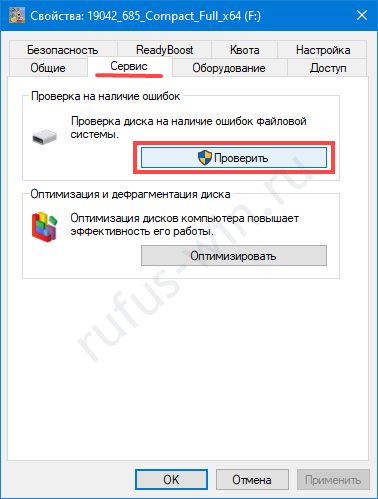
Checking the disk for errors. - Start scanning the drive.
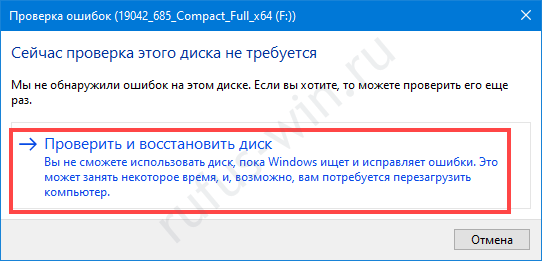
Disk check.
Formatting as a Way to Solve the Problem
If there are a large number of logical problems or physical damage on the USB drive, format it:
- Right-click and select the corresponding command.
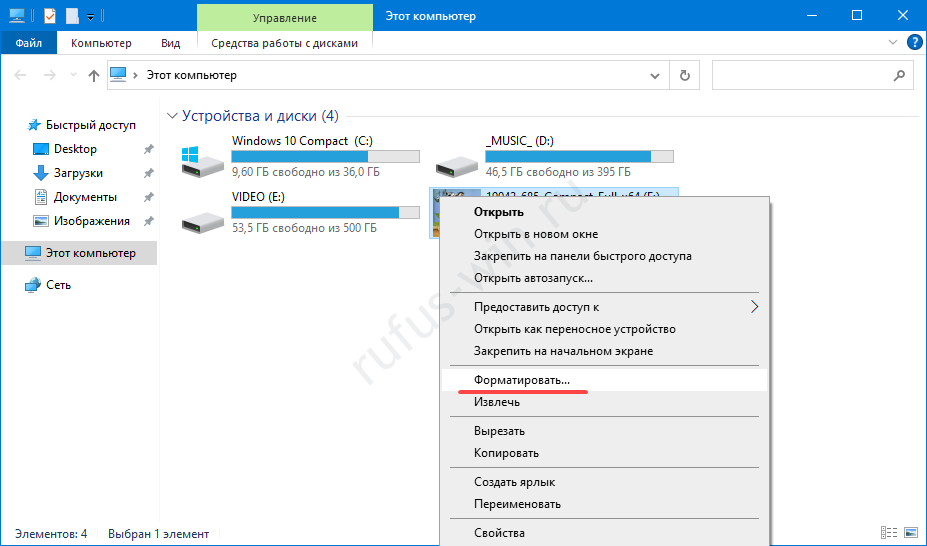
Formatting disks when errors occur. - Uncheck “Quick…” and click “Start”.
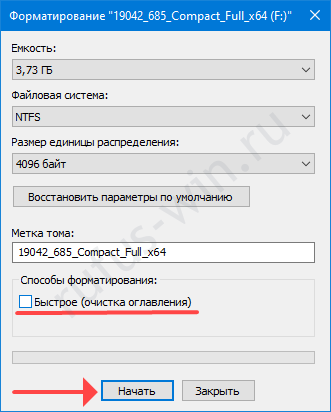
- Confirm the deletion of files on the device, after first copying the information.
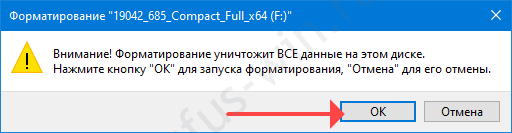
Sometimes you have to resort to advanced utilities for low-level formatting and recovery, such as HDD Regenerator.
File System Errors
Rufus works with seven file systems:
- FAT – outdated, no longer in use.
- FAT32 – the successor to FAT. Used for GPT and UEFI partitions. Does not support writing files larger than 4 GB.
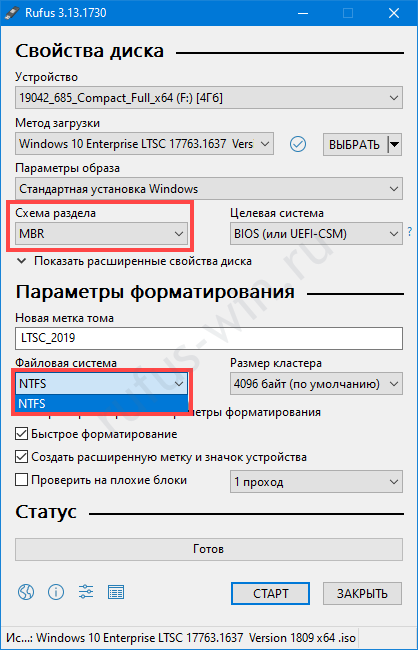
- NTFS – free of a number of FAT32’s drawbacks, created by default for MBR and BIOS partitions. Not supported by DOS (FreeDOS).
- UDF – a specification for optical drives, rare on flash drives.
- exFAT (sometimes called FAT64) – a file system with an increased number of sector rewrites, larger cluster size, and access rights support. Resource-intensive.
- Ext2, ext3 – file systems for various Linux distributions, with ext3 outperforming ext2. Ext2 is barely used; choose the latter for creating bootable Linux flash drives.
ISO Image Errors
When you get a notification that the image is corrupted:
- you’ll have to download it again;
- re-hash it if you downloaded it via torrent, and re-download the few megabytes containing the error;
- find an alternative, undamaged image;
- check the partition holding the image for bad sectors — the ISO file may be stored in damaged areas of the hard drive.
Conflict with Antivirus Software
Add the utility to your antivirus exclusions, or shut down the security software while Rufus is running.
Unable to Patch the Installation Files for Rufus Boot
Run the utility with administrator privileges — right-click and select the corresponding option.
You need the appropriate privileges in Windows. You must be logged in to the OS as an administrator.
Then replace the flash drive and download a different image.
“BOOTMGR is missing” Error
No bootloader was found on the drive. First use the Rufus feature to create a bootable drive based on the appropriate image.
Error [0x00000015] The device is not ready
This error before formatting a flash drive in Rufus occurs when automatic mounting is disabled.
Fix instructions:
- Launch Command Prompt with administrator rights via Win + X.
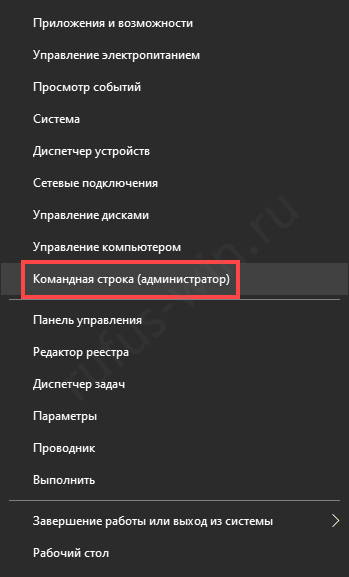
Launching Command Prompt. - Run the command “mountvol /e”.
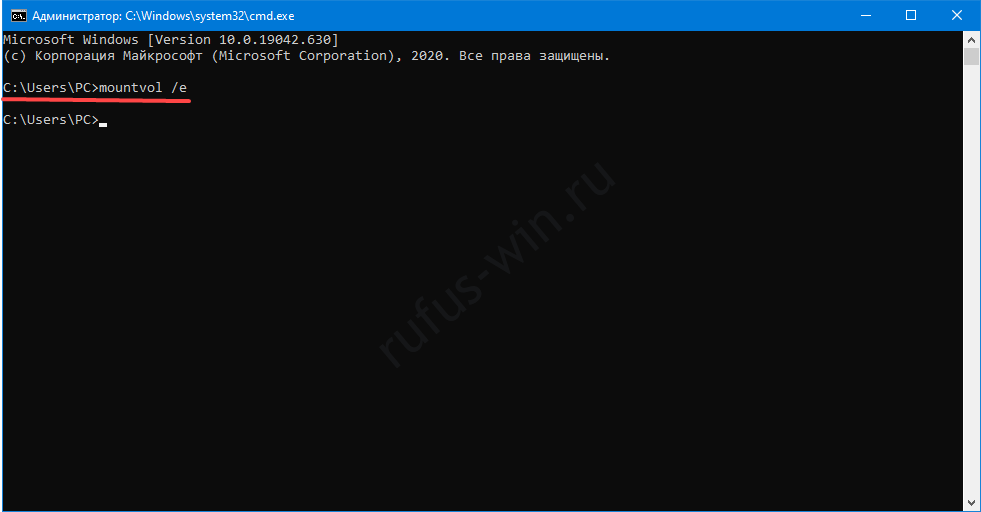
- Close the window and try performing the actions again.
“Device eliminated because it appears to contain no media” Error
The flash drive’s lifespan is nearing or has reached its end. Buy or use a different one.
Rufus Won’t Let You Select FAT32
Why do you need FAT32? The application automatically selects the file system based on the image contents. If NTFS is set for a disk with MBR partitions, don’t change it.
Unable to Mount GUID Volume
Try a different drive. Scan the current one for damage.
Error [0x00000005] Access is denied
Some program is preventing Rufus from accessing the memory card. Often it’s antivirus software.
“Unable to read the media. It may be in use by another process” Error
Similar to the previous case: close your antivirus and shut down third-party applications using the flash drive. Scan the disks for viruses. Try booting in Safe Mode.
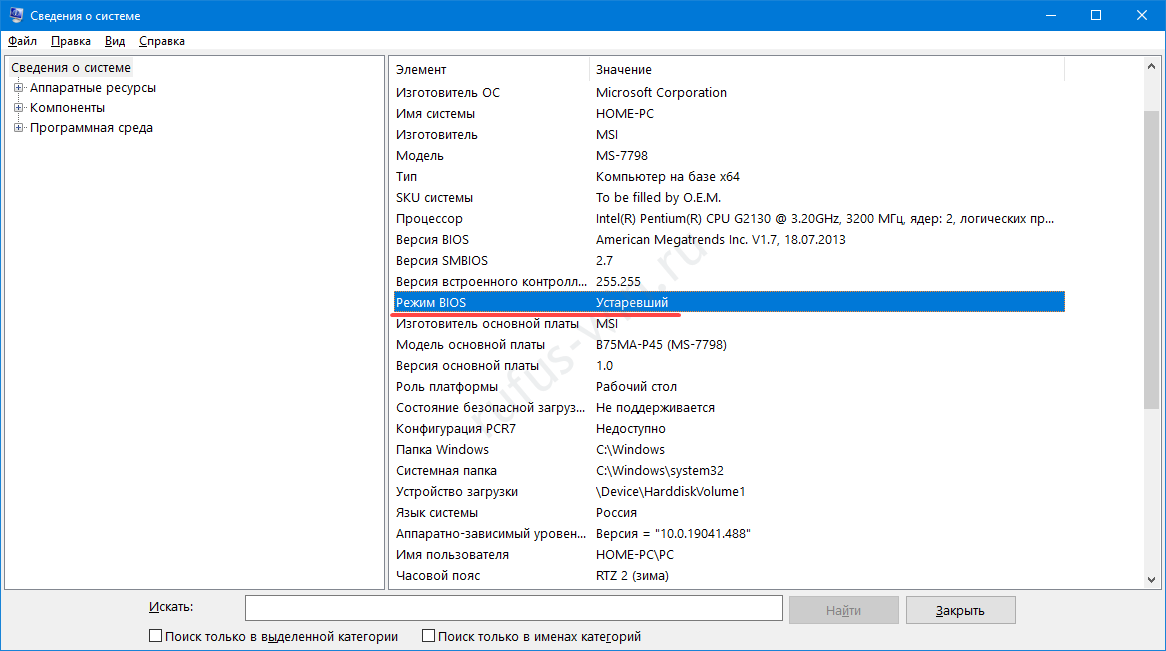
“Error: Legacy boot of UEFI media. This drive can only boot in UEFI mode” Error
Create the drive correctly. Check the BIOS mode with the “msinfo32” command run in the Win+R window.
Error When Creating Partitions in Rufus
Make sure the flash drive isn’t being used by other programs, the image isn’t corrupted, and it takes up less space than the drive’s capacity.
Error 0x80070032 “such request is not supported”
Shut down your antivirus.
“This drive was created by Rufus” Error
The drive was created in Rufus for UEFI, and you’re trying to boot it in BIOS mode (or CSM). Go to the UEFI settings and disable Legacy Mode (CSM). Recreate the bootable flash drive for BIOS and MBR.
“Another Rufus application” Error
The application is already running: switch to its window or close it. You may need to end the task via Task Manager.
ISO Image Extraction Error
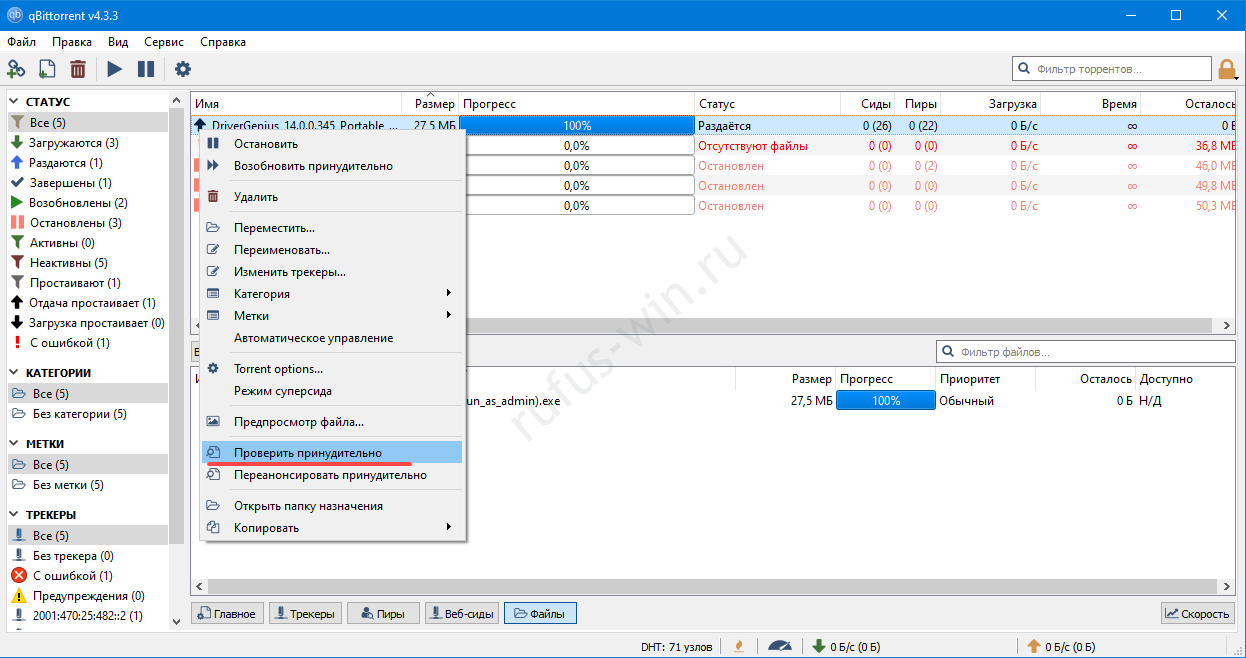
An ISO image extraction error in Rufus is fixed quickly. If you downloaded the file via torrent, open your peer-to-peer client (uTorrent, BitTorrent, qBittorrent), right-click, and select “Force recheck” or a similar option. Otherwise, download the ISO again or find a different image on another tracker.
“Delayed Write Failed” Error
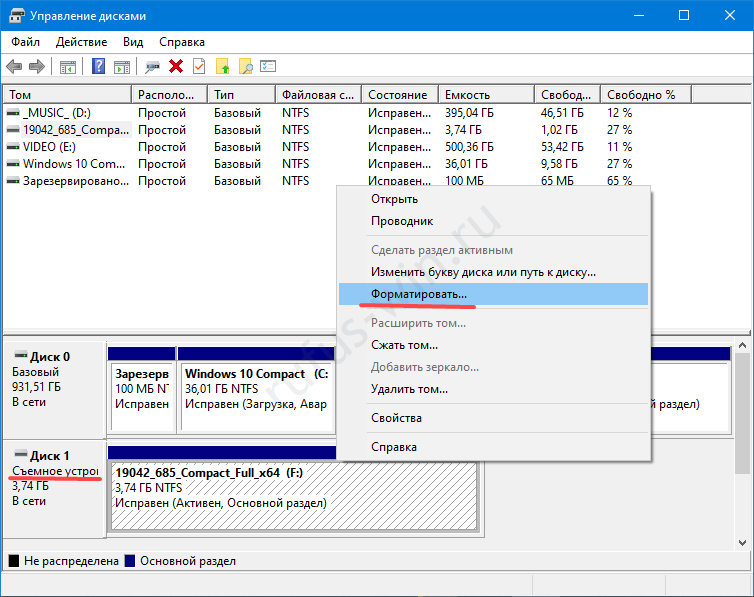
Format the flash drive. If that doesn’t help, reset it via Rufus — press Alt+Z and confirm the operation.
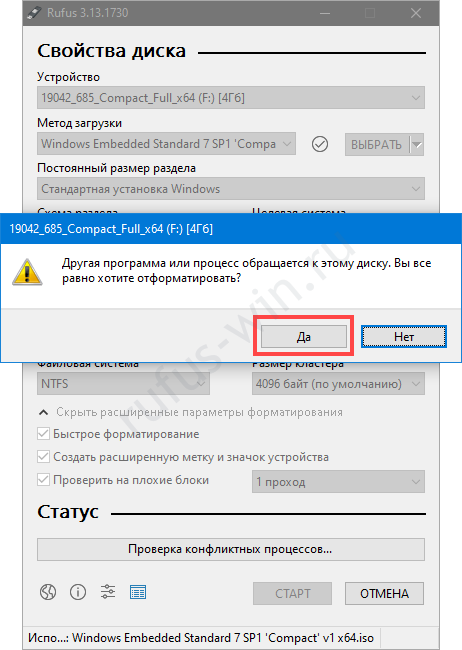
Then format the drive using the Disk Management utility (opened via Win+X).
Unable to Assign a Drive Letter in Rufus
The solution is in the section above.
Check the settings. Something was done incorrectly, possibly:
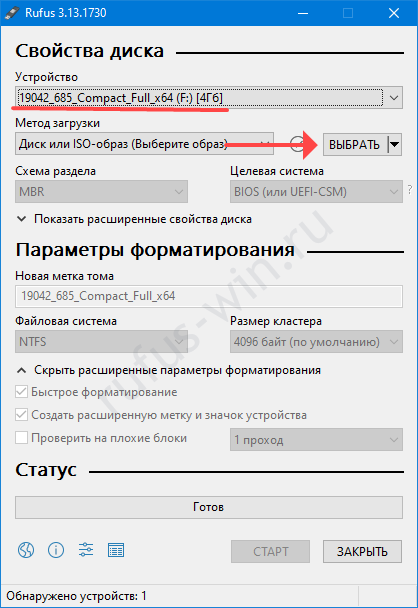
- No flash drive was detected (see the first drop-down list).
- No ISO was specified — click “Select” and choose the file.
- A corrupted or non-bootable image was selected (with an unsupported bootloader). Try a different one.
Linux Image Writing Error
Agree to download the missing (updated) files from the internet. This is no longer an error — Rufus is offering to download updated libraries for creating the bootable image.
Other Questions and Answers About Errors
What should I do if an error occurs when creating a Windows 7 or Windows 8 drive, but the drive mounts without errors?
There’s too little information to analyze — describe the problem in more detail. Try a different image, and check whether the one you’re using is corrupted.
Why doesn’t Rufus launch on Windows XP?
Read the program requirements here. The last version of Rufus for Windows XP was released as edition 2.18.
What should I do if my flash drive stops working after Rufus?
It’s your own fault. Either the flash drive was damaged or old, or you interrupted the writing or formatting process. Format the device via Disk Management or Rufus. Reset the memory card using the Rufus utility — press Alt+Z and confirm. Then format the drive.
Why does Rufus freeze while writing an image?
The USB drive may be damaged, the image may have been written to bad sectors, the disk where the ISO is stored may be too fragmented, or the computer or laptop may be busy with other tasks.
Does Rufus check the flash drive for bad blocks?
No, but it can launch a Windows system utility that will check.
What should I do if the image is too large for the selected device?
Get a flash drive with a capacity that exceeds the file size.
What should I do if Rufus says “Invalid device label”?
Change it in the “New volume label” field.
How do I turn a bootable flash drive back into a regular one?
Format the drive.
Still have questions? Leave a comment — we’ll answer.